What is Privacy Password? How It Keeps Your Data Safe
Privacy in the digital world is more important than ever. The good news is smartphones are waking up to this need and are introducing advanced security features like a privacy password. If this is your first time hearing this phrase, then this article will help you understand what it is.
We’ll also talk about various ways in which you can unlock this password in case you lose it. In addition, you’ll also learn how to change the privacy password and perform a privacy password reset.
What is Privacy Password?
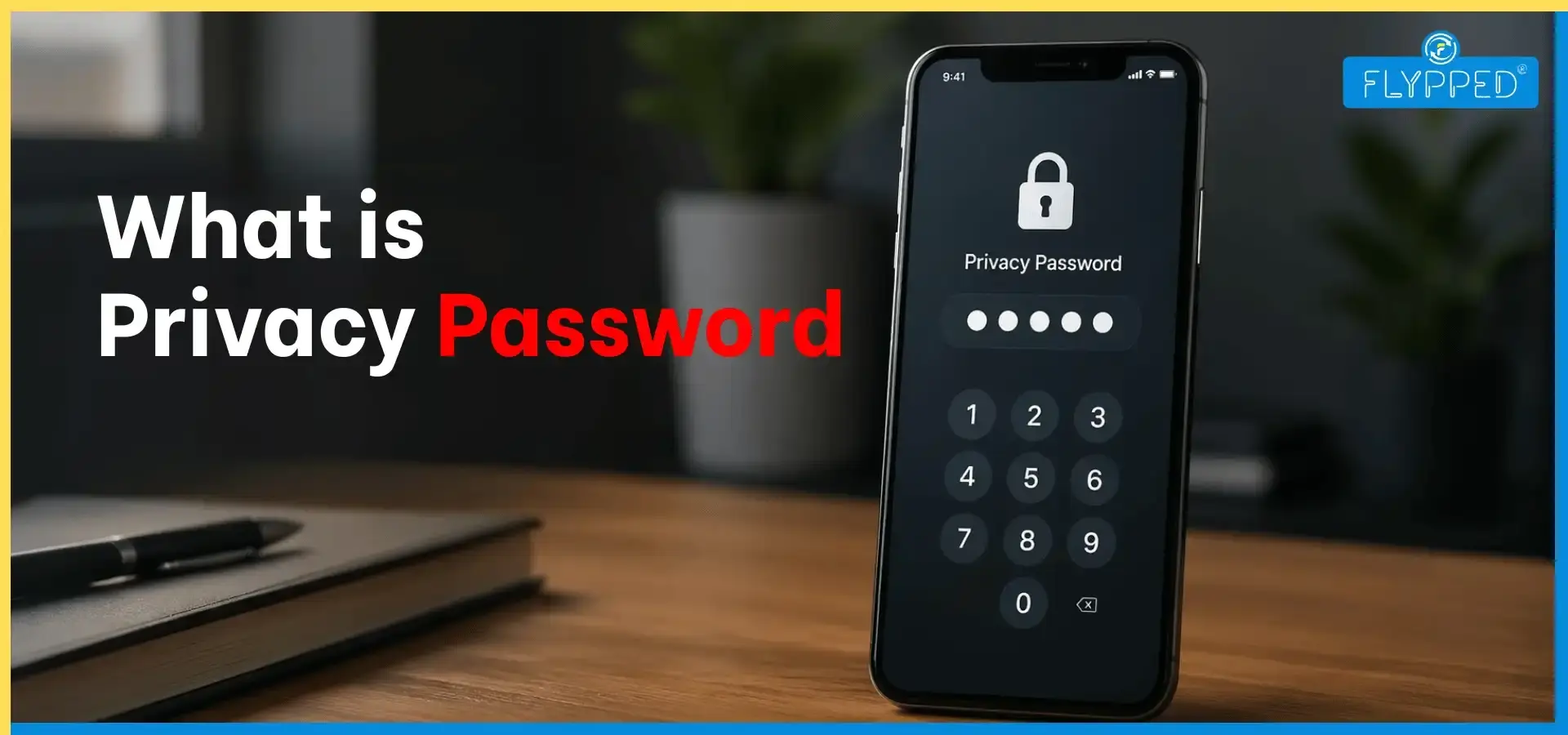
A privacy password is a password that adds an additional layer of security to your sensitive data, apps, or files on your device.
This is not the same as your phone’s lock screen password/PIN, which locks your device. This special password is specifically designed to protect the private content present on your device, such as photos & videos, apps (like WhatsApp, gallery, notes), documents & files, and hidden folders.
To be more precise, the privacy lock password helps protect your phone's private data even if someone unlocks your device. Without knowledge of this extra password, they cannot access any password-protected data to protect your privacy.
This extra password feature is commonly found in smartphones from brands like Xiaomi, OPPO, Vivo, and Realme.
How to Unlock Privacy Password?
If you have forgotten your password, the following methods will help you retrieve it. Here are simple steps to unlock the privacy protection password:
1. Use the “Forgot Password” Option
This is the most common fix for the privacy lock password:
a) Open the locked app or Private Safe
b) Tap “Forgot Password”
c) Verify yourself using any one of these:
- Registered email
- Phone number (OTP)
- Security questions
d) After this, you’ll be taken to a new screen where you can do a password reset
e) Set a strong password which you can remember easily
2. Use Fingerprint or Face Unlock
This works only if you’ve enabled these biometric features earlier. If you have, simply use your fingerprint or ‘face unlock’ to bypass the password.
This method works on many OPPO, Vivo, and Xiaomi phones.
3. Unlock via Phone Settings
On some devices, you can unlock the password directly from settings. Here are the steps:
a) Go to Settings
b) Tap Privacy/Security/App Lock
c) Now, select Change or Reset Password
d) Verify identity by OTP/email
e) You’ll be navigated to a screen to create a new password
f) From there, set a new password
4. Use Brand Account (Mi/OPPO/Realme/Vivo)
This works if your device is linked to an account. If you have a Mi/OPPO/Vivo account, you can use it to verify your identity. Once you are authenticated, you’re directed to the screen where you can reset the privacy protection password.
5. Last Option: Factory Reset
This is your last resort. If all the above-mentioned methods fail, do the following steps:
a) If possible, back up your data.
b) Now, go to Settings → System → Reset
c) Choose Factory Reset
However, use this method only when nothing else works, as factory resetting will erase all data on your phone.
How to Change Privacy Password?
It’s a good practice to change your password every few months. You should also reset the password in case it gets compromised.
Here are simple steps to change the privacy password:
Method 1: From Phone Settings
This is the most common method.
a) Open Settings
b) Go to Privacy/Security/App Lock
c) Tap Privacy Password or App Lock
d) Select Change Password
e) Now, enter your current password
f) Afterwards, set a new privacy password
This works fine on most Android phones.
Method 2: From App Lock/Private Safe
Follow these simple steps to change the privacy lock password:
a) Open any locked app or Private Safe
b) Now, enter your current privacy lock password
c) Go to Settings (gear icon)
d) Now, tap Change Password
e) Enter your old password
f) Finally, you’ll be directed to set a new password
Method 3: Use Fingerprint/Face Unlock
This method works if you have these biometric features enabled. If you have, follow these steps:
a) Go to settings
b) Simply verify yourself using fingerprint/face unlock
c) Change the privacy password
Method 4: If You Forgot the Password
If you forgot the password, then do the privacy password reset:
a) Go to Settings (gear icon) → Privacy → App Lock → Change Password
b) Tap Forgot Password
c) Verify yourself using OTP, email, or security questions
d) Once you are through, reset and create a new password
Method 5: Factory Reset
The last resort is always to do a factory reset.
a) Go to Settings → System
b) Tap Reset, and you will be reverted to factory default settings
This method deletes all your data and removes the password, allowing you to set a new password from scratch.
Final Thoughts
The privacy password serves an important role in today’s digital age. It is a powerful tool that safeguards your personal data. This extra layer of security beneath the ‘phone password’ is needed to protect private assets from friends and spouses who generally know your phone password.
With a Gallery lock and password-protected folders, you can enjoy privacy even when someone else is using your phone.